
Accessibility Reader in iOS 26: How to Make Any Text Easier to Read on iPhone
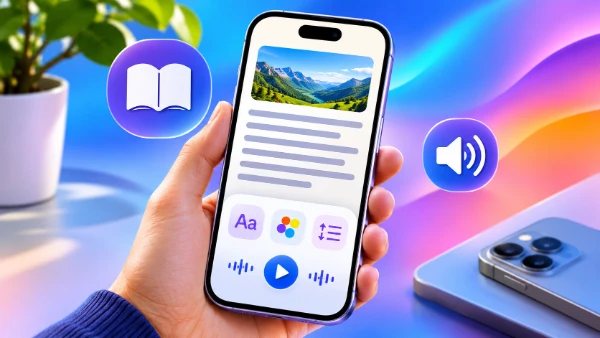
Reading on an iPhone is not always comfortable, particularly when websites use small fonts, documents contain tightly packed paragraphs, or applications display text against distracting backgrounds. Apple introduced Accessibility Reader in iOS 26 to address these difficulties with a consistent reading experience that works across applications. The feature presents text in a full-screen view where users can adjust font size, colours, spacing and other visual settings without changing the original content. It also includes spoken playback, allowing users to listen instead of reading everything on screen. Accessibility Reader is especially useful for people with dyslexia, low vision or reading fatigue, but its practical benefits extend to anyone who regularly reads articles, messages, documents or printed material on an iPhone.
What Accessibility Reader Does in iOS 26 and How It Works
Accessibility Reader is a system-wide reading feature introduced with iOS 26. Unlike traditional reading modes that are primarily associated with web browsers, it can be launched while using different iPhone applications. Its main purpose is to provide a more predictable and comfortable way of viewing text, regardless of how that text was originally presented. When activated, Accessibility Reader opens a dedicated full-screen interface with its own appearance settings and audio controls. This helps reduce the need to repeatedly adjust individual applications, particularly when moving between websites, notes and other reading materials throughout the day.
The feature can change several important aspects of the reading experience. Users can increase or decrease text size, choose alternative fonts, adjust the distance between lines and words, and select different combinations of foreground and background colours. These adjustments are particularly useful when the original text is difficult to follow because of its size, contrast or visual density. Rather than simply enlarging an entire screen, Accessibility Reader concentrates on presenting readable text in a consistent format. The result is a more controlled reading environment that can be adapted to individual preferences without requiring changes to the original website or document.
Although Apple describes Accessibility Reader as working across applications, this does not mean that every item displayed on an iPhone can always be converted perfectly. The feature needs text that iOS can access and interpret, while certain applications, complex layouts and image-based content may produce different results. An article containing ordinary paragraphs is generally more suitable than an interactive screen filled with buttons, graphics and unusual formatting. Accessibility Reader should therefore be understood as an alternative reading view rather than a complete replacement for the application displaying the original material. Users can return to the original interface whenever they need its full layout or interactive features.
How Accessibility Reader Differs from Safari Reader and Other iPhone Reading Tools
Safari Reader and Accessibility Reader have related purposes, but they are not interchangeable. Safari Reader is primarily designed to simplify supported webpages by presenting articles without many of the surrounding website elements. It is useful when browsing news, guides and other written material in Safari. Accessibility Reader has a broader role because it is integrated into iOS rather than being restricted to the browser. It provides a dedicated interface for reading text from different applications, along with detailed appearance controls and built-in spoken playback. Someone who reads both webpages and notes, for example, can benefit from using the same preferred reading style in more than one application.
Accessibility Reader also differs from the standard Larger Text setting available in iOS. Increasing the system text size can improve readability in applications that support Apple’s text-size adjustments, but the appearance of each application still depends on its own design. Accessibility Reader provides a separate view with additional control over typography, background colours and spacing. It is also different from VoiceOver, Apple’s screen reader for navigating an iPhone through spoken descriptions and gestures. VoiceOver can announce interface elements and help users operate the device without relying on sight, whereas Accessibility Reader mainly concentrates on making written content easier to read or listen to.
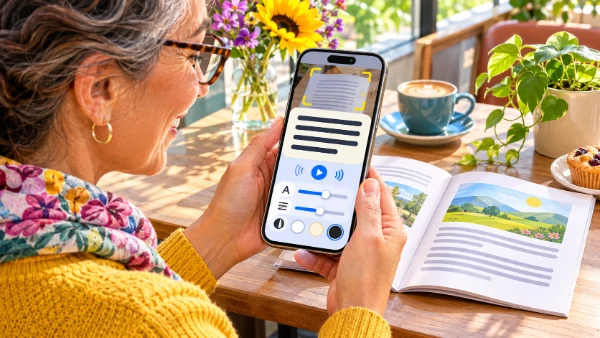
Another useful distinction concerns reading printed material. Accessibility Reader is integrated into Apple’s Magnifier app, which can use the iPhone camera to capture text from physical surroundings. This makes it possible to work with material that does not originally exist as an accessible digital document, including printed notices, restaurant menus and pages from books. The captured words can be presented in a more readable format or spoken aloud, depending on the available controls. Accessibility Reader therefore connects two everyday situations: reading information already displayed on an iPhone and making printed information easier to access through the camera.
How to Enable Accessibility Reader and Customise Text on iPhone
Before using Accessibility Reader, an iPhone must be running iOS 26 or a compatible later release. To activate the feature, open Settings, select Accessibility, tap Read & Speak, and then choose Accessibility Reader. Switch on Accessibility Reader to make the reading mode available. The same settings screen includes an Autoplay option, which can start spoken reading automatically when the feature opens. Users who prefer to read silently can leave Autoplay disabled and start audio playback manually when needed. There is no requirement to install a separate reading application or create an additional account, since Accessibility Reader is included as part of the operating system.
One convenient way to open Accessibility Reader is through the Accessibility Shortcut. Navigate to Settings, select Accessibility, scroll to Accessibility Shortcut and choose Accessibility Reader from the available features. Once configured, triple-clicking the Side button can launch the shortcut on an iPhone with Face ID. On a supported model with a Home button, the equivalent action uses that button instead. If several accessibility features are assigned to the shortcut, iOS displays a menu so that the required option can be selected. This method is particularly practical for people who frequently switch between ordinary application views and customised reading.
Accessibility Reader can also be accessed through Control Centre. Open Control Centre, enter its editing mode, select Add a Control and look for the relevant accessibility control. After adding it, the reader can be opened without using a physical button shortcut. This may be more convenient when reading with one hand or when the Side button is already associated with another accessibility function. Once Accessibility Reader has been activated, open the application containing the text you want to read and launch the feature using your preferred method. The reader presents the available content in its dedicated view, where its appearance and playback controls can be adjusted.
Adjusting Fonts, Colours, Spacing and Spoken Reading
To personalise the reading view, open Accessibility Reader, tap the More button and choose Customise Reader. The interface provides themes that can be edited to suit different visual preferences. Text size can be increased for easier recognition or reduced when more words need to fit on the screen. Users can select an alternative font, enable bold text and adjust text and background colours. A darker background with lighter lettering may feel more comfortable in dim surroundings, while dark lettering against a light background may work better outdoors. Neither arrangement is universally preferable, so experimenting with several combinations is often more useful than following a single recommended setting.
Spacing adjustments are equally important because reading difficulty is not always caused by small letters. Accessibility Reader allows users to change line spacing, word spacing and character spacing. Increasing the space between lines can make it easier to follow a paragraph without accidentally moving to the wrong line, particularly when reading long passages. Additional word or character spacing may help some readers distinguish text more comfortably, although excessive spacing can make sentences harder to scan. Users can also enable high-legibility characters when using the system font, adjust hyperlink visibility and save a preferred appearance by renaming a customised theme. These options make it possible to develop a familiar reading style rather than adjusting every detail from scratch.
Spoken reading provides another way to manage longer content. Accessibility Reader includes playback controls for starting and pausing speech, moving backwards or forwards, changing the speaking rate and navigating through the audio. Text highlighting can accompany playback, helping readers follow the words visually while listening. This combination may be useful when concentrating on lengthy instructions, reviewing unfamiliar terminology or reading while tired. Users who prefer immediate audio can enable Autoplay in the Accessibility Reader settings, while those who want an uncluttered screen can hide the audio controls when they are unnecessary. The playback speed can be adjusted according to the complexity of the material rather than kept at one setting for everything.
Using Accessibility Reader for Everyday Reading and Printed Text
One of the most practical applications of Accessibility Reader is reading long articles on an iPhone. Online publications sometimes combine written content with images, navigation menus, advertisements and formatting that is less comfortable on a small display. When the main text is accessible to the reader, opening it in Accessibility Reader allows users to concentrate on the written material with their preferred font and spacing settings. The same approach can be useful for lengthy notes, educational resources and reference information displayed inside applications. However, complicated page structures are not always reproduced exactly, so it remains sensible to check the original view when the position of an image, table or diagram is important for understanding the content.
Accessibility Reader can also be helpful when studying or working with substantial amounts of written information. Someone reviewing course notes might increase line spacing and choose a larger font to reduce the effort needed to follow each paragraph. Another person reading a long explanation could use spoken playback while following the highlighted text. For material containing unfamiliar words, slowing down the audio may provide more time to process each sentence. These adjustments do not alter the meaning of the original text, but they make its presentation more flexible. Readers can choose different settings for different situations, such as a higher-contrast theme during travel and a softer colour combination when reading at home.
For people who regularly experience visual fatigue, the greatest benefit may come from consistency. Moving between applications with different font sizes, colour schemes and text layouts can require repeated visual adjustment. Accessibility Reader reduces some of that variation by offering a familiar interface wherever suitable text can be accessed. It may also help users who temporarily find reading difficult because of tiredness, changing lighting conditions or an uncomfortable original layout. Nevertheless, it is not intended to diagnose or treat visual or reading conditions. Its role is to make information easier to access, and the most effective settings will depend on individual needs and the type of material being read.
Reading Physical Documents with Magnifier and Understanding the Limitations
Accessibility Reader becomes particularly useful outside ordinary applications through its integration with Magnifier. Open the Magnifier app and point the iPhone camera towards printed material, such as a leaflet, instruction sheet, product label or restaurant menu. Magnifier can capture visible text and make it available in a reading view where users can change its appearance or listen to it. This is helpful when printed letters are too small, the contrast is poor or the document cannot be comfortably positioned for reading. Instead of depending entirely on the original print size, users can view recognised text in a format that better suits their eyesight and reading preferences.
Capturing printed information introduces limitations that are different from those encountered with ordinary digital text. Recognition quality depends on factors such as lighting, camera focus, the condition of the page and the clarity of the lettering. Curved pages, reflective packaging, decorative fonts and densely arranged columns may make text harder to interpret correctly. Handwritten material can present additional difficulties. When using Magnifier to read medicine instructions, financial details, measurements or other information where accuracy matters, it is important to check uncertain words and numbers against the original material. Accessibility Reader can improve the presentation of captured text, but it cannot guarantee that every character was recognised correctly.
Accessibility Reader in iOS 26 is most effective when treated as a flexible reading aid rather than a universal solution for every document. It does not automatically make inaccessible application content available, preserve every complex layout or replace specialised tools such as VoiceOver. Readers may still need Safari Reader for supported webpages, Magnifier for physical text or other accessibility features for particular tasks. Its main advantage is the ability to combine familiar visual settings with spoken reading across a wider range of situations. For anyone who regularly finds small lettering, crowded paragraphs or inconsistent formatting uncomfortable, configuring Accessibility Reader once and learning its shortcuts can make everyday reading on an iPhone noticeably more manageable.