
MacBook (Apple Silicon) Battery Lifespan: Optimised Charging, Heat, External Monitors — A Practical Checklist
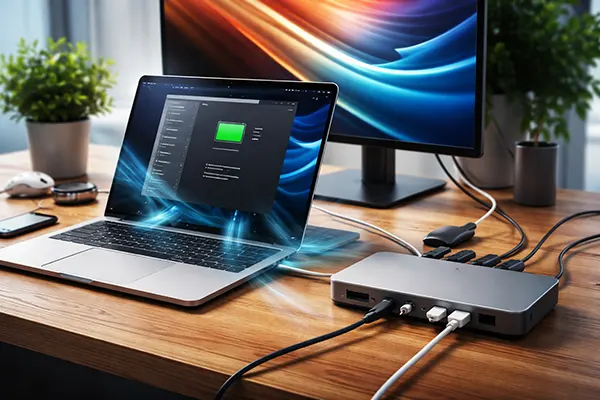
Apple Silicon MacBooks are genuinely efficient, but battery wear still follows the same chemistry: high temperature, long stretches at very high state of charge, and “always-docked” habits tend to shorten useful capacity over time. The goal in 2026 isn’t to baby the laptop—it’s to remove the handful of everyday behaviours that quietly add heat and micro-stress, especially when you live on a USB-C monitor, a dock, or closed-lid desk mode.
What damages a MacBook battery fastest in real life
Heat is the main accelerator. Apple’s own guidance for Mac laptops is to use them in ambient temperatures between 10°C and 35°C; the further you push above that range (sunny windowsills, a duvet, a tight sleeve while charging), the more you encourage faster chemical ageing and capacity loss.
Staying at 100% for long, uninterrupted periods is another common stressor. Modern MacBooks manage charging intelligently, but if you run permanently on mains power with a workload that keeps the chassis warm (video calls, external displays, high brightness), the battery can spend too much time “topped off” while warm—an unhelpful combination.
Desk setups create hidden heat traps. A dock plus monitor plus closed lid can raise internal temperatures simply by reducing airflow and forcing the MacBook to dump heat through the chassis. If you also charge inside a case or against a soft surface, you’re effectively insulating a warm battery.
Simple habits that reduce wear without changing how you work
Keep airflow boring and obvious: hard surface, a few millimetres of clearance under the laptop, and nothing pressed against the hinge area where warm air often exits. If you use a stand, you’re not “optimising”—you’re just letting the cooling system do its job.
Avoid charging inside sleeves, bags, or stacked setups. Even if the MacBook feels only “a bit warm”, sustained mild warmth over months matters more than a single hot moment. If you need to carry it, unplug and let it cool for a couple of minutes before packing.
For long storage breaks, don’t park the battery at 100%. Apple’s handling guidance recommends storing in a cool place and leaving the battery around 50% for extended storage, topping back to about 50% every so often if stored for many months.
Optimised Battery Charging and Battery Health Management: what they do, and where they don’t help
In macOS, Optimised Battery Charging is designed to learn your routine and delay charging past 80% when it predicts you’ll be plugged in for an extended period, then finish to 100% closer to when you typically unplug. The key benefit is less time spent fully charged when you don’t actually need it.
Battery Health Management (also surfaced as “Manage battery longevity” in Battery settings on recent macOS versions) can reduce peak capacity in certain patterns of use to slow long-term ageing. That can look counter-intuitive—your Mac may stop chasing 100%—but the intent is fewer stressful hours at the top end.
Where these features don’t save you: irregular schedules, constant travel, and desk setups that run hot all day. If your MacBook’s routine is unpredictable, it may not “learn” reliably, and if the machine is consistently warm, smart charging can’t fully offset the chemistry. It’s still worth enabling, but you’ll get the biggest gains from lowering heat and removing the “always warm, always full” pattern.
How to set it up properly and interpret “charging on hold”
In 2026 macOS System Settings, go to Battery and enable Optimised Battery Charging. If you also see options related to battery longevity/health management, leave them on unless you have a specific reason to prioritise maximum time unplugged every single day.
If you see charging paused or “on hold”, it’s often the system doing exactly what it should: delaying a full charge to reduce time at 100%. Apple documents this behaviour as normal when Optimised Battery Charging is enabled, especially if your Mac expects to remain on power.
When it’s not normal: the battery never charges beyond a certain percentage even when you need it, the Mac rapidly flips between charging and not charging, or you see “Service Recommended”. In those cases, the next step is basic diagnostics (below), plus checking the cable, power adapter, and dock path if you’re charging through USB-C accessories.
Docked, external monitor, and clamshell setups: keeping heat and cycles under control
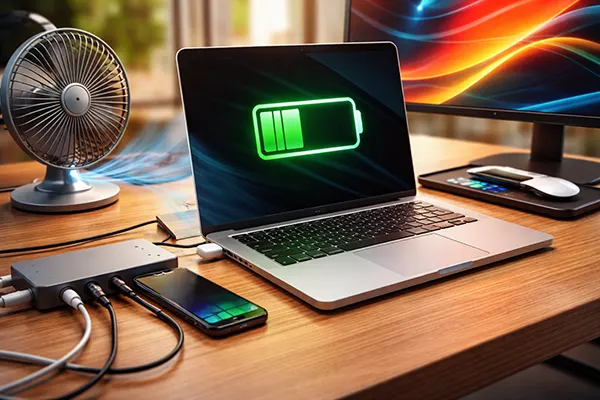
External displays add load. Even when you’re not “doing much”, driving higher resolutions and refresh rates can raise power draw and heat. More heat means fans work harder, and the battery sits in a warmer environment even while plugged in.
Closed-lid (clamshell) mode is convenient, but it changes cooling. With the lid shut, the MacBook loses one large surface area for heat exchange and often sits flatter on a desk. That can be fine, but only if you give it air and avoid stacking it against other warm devices.
Docks and USB-C hubs can also introduce inefficiencies—especially if they’re delivering power while simultaneously running a monitor and multiple peripherals. The MacBook might run warmer because the dock itself warms up, or because the setup nudges the system into a less efficient power path. None of this is “bad”; it just means your desk setup is part of battery care.
A practical desk checklist you can apply in 10 minutes
Start with cooling: place the MacBook on a stand or a hard surface with clear airflow, and keep the rear/hinge area unobstructed. If you prefer clamshell mode, ensure power is connected and the Mac is not buried behind the monitor where warm air stagnates.
Reduce display strain where it’s invisible: use a reasonable refresh rate, avoid running unnecessary HDR when you don’t benefit from it, and keep brightness sensible. On many workflows, dropping from “maximum everything” to “comfortable” cuts heat without touching performance.
Keep charging simple. If your monitor provides USB-C power, it can be perfectly fine—just watch for extra warmth or unstable charging behaviour. If you notice the battery hovering at very high charge while the chassis stays warm all day, try one change at a time: different cable, a cooler dock position, or occasionally letting the battery drift down (for example to the 70–80% range) before topping up again.