
USB-C in the Apple ecosystem: how to choose a cable, hub and charger without losing speed
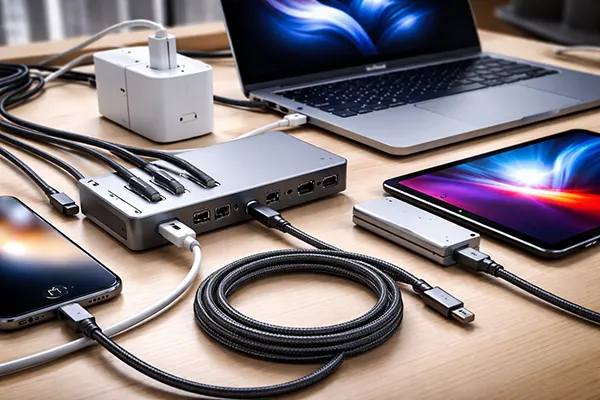
USB-C looks like a single standard across Apple devices, yet real performance varies dramatically depending on what sits behind the connector. In 2025, the same USB-C plug can mean slow USB 2.0 transfer speeds, full USB 3 at 10Gbps, or high-bandwidth USB4 and Thunderbolt. That is why choosing accessories “by appearance” often leads to bottlenecks, unstable display output, or charging that feels slower than expected. This guide explains, in practical terms, how to select the right USB-C cable, hub and charger for modern iPhone, iPad and Mac models.
Why USB-C cables are not interchangeable (and how Apple devices expose the differences)
The most common mistake is assuming that USB-C automatically equals fast data. In reality, the connector shape tells you nothing about the internal wiring or the data protocol a cable supports. Many inexpensive USB-C cables are built mainly for charging and only deliver USB 2.0 data speeds (up to 480Mbps). For basic syncing this may be acceptable, but for large files it becomes painfully slow.
Apple devices make this difference very noticeable. iPhone 15 and 15 Plus still use USB 2.0 data speeds despite having a USB-C connector, while iPhone 15 Pro and Pro Max can reach USB 3 speeds up to 10Gbps — but only with a proper USB 3-capable cable. If you plug an iPhone 15 Pro into a Mac using a basic charge cable, transfers can drop back to USB 2.0 and the advantage is lost.
For Mac users working with external SSDs or video files, the cable can become the weakest link. A fast external drive connected with a low-spec cable will not deliver expected speeds, even if the drive and the Mac support higher bandwidth. The safest approach in 2025 is choosing cables that clearly state their data rating: 10Gbps for USB 3.2 Gen 2 use, or 40Gbps for USB4/Thunderbolt workflows.
What to look for on the box: data speed, charging power and real-world reliability
A good cable listing should state a specific maximum data rate: 480Mbps, 5Gbps, 10Gbps, 20Gbps, 40Gbps, or Thunderbolt 5-level support. If the seller only says “fast” or “high speed” without a number, assume the worst. In the Apple context, 10Gbps is the practical minimum for iPhone 15 Pro transfers and for modern external storage that people use with MacBooks.
Charging performance is separate from data speed. A cable can support high-watt charging but still be limited to slow data, and the reverse is also possible. If you want a single cable that covers most Apple use cases, look for clear Power Delivery support and a high wattage rating. In 2025, cables that support up to 240W (USB PD 3.1) provide long-term compatibility even if your current device doesn’t need that much power.
Finally, don’t ignore build quality and length. Longer cables can introduce signal loss at higher data rates, and very cheap cables sometimes fail under sustained load. For Thunderbolt or USB4 use, it is safer to buy certified cables from reputable brands, especially if you rely on stable display output, docks, or fast SSD performance.
Choosing a hub or dock: when a USB-C hub is enough and when Thunderbolt matters
Hubs and docks solve a real problem for Mac users: modern MacBooks have fewer ports, yet people still need monitors, storage, Ethernet, SD cards and accessories. The challenge is that many hubs share limited bandwidth across all connected devices. If you attach a monitor and a fast SSD to a basic USB-C hub, the drive may slow down significantly because video output consumes part of the available link capacity.
Thunderbolt docks are more expensive, but they offer a higher-bandwidth connection and more predictable behaviour under load. In typical workflows, they handle multiple high-speed peripherals more smoothly than standard USB-C hubs. This is particularly important for professionals using external NVMe SSDs, multi-monitor setups, or large media libraries.
In 2025, many Apple Macs support USB4 and Thunderbolt 4, and newer high-end models can offer Thunderbolt 5. You do not always need a Thunderbolt 5 dock, but you should understand your Mac’s port capabilities. Buying an underpowered hub can quietly cap performance and create a desk setup that feels outdated long before your Mac actually is.
Display output over USB-C: Alt Mode, compatibility, and why monitors sometimes “just don’t work”
Video output is often the most confusing part of choosing a hub. Some hubs rely on DisplayPort Alt Mode, while others use Thunderbolt/USB4 tunnelling. Even if the hub has HDMI or DisplayPort sockets, it may only support certain resolutions and refresh rates, and many budget hubs struggle with 4K at 60Hz once other devices are connected at the same time.
If you use Apple Studio Display, Pro Display XDR, or any display that expects a strong Thunderbolt connection, a Thunderbolt cable and dock are the safest choice. These setups are generally more stable after sleep and wake, and they reduce issues like flickering, black screens, or inconsistent detection.
For simpler use — one 4K monitor at 60Hz, basic USB accessories and occasional file transfers — a good USB-C hub can be enough. The key is checking the hub’s stated video output capabilities and making sure it matches your monitor’s requirements. In 2025, avoid buying blindly: “supports 4K” is not the same as “supports 4K at 60Hz while using other ports”.
Charging in 2025: USB Power Delivery, wattage, and how to avoid slow charging or overheating
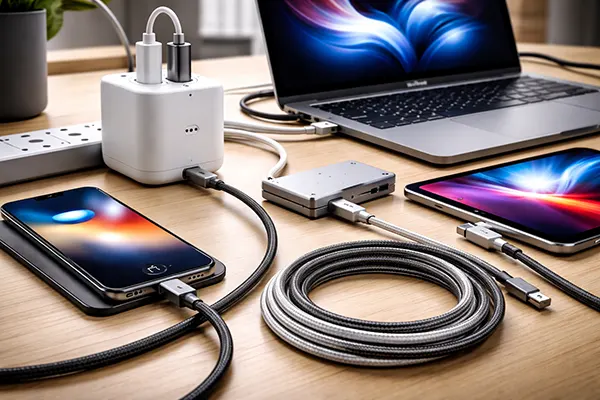
Most modern Apple devices charge via USB-C, but charging speed depends on Power Delivery profiles and the wattage your charger can provide. A MacBook can technically charge from a small adapter, but it may do so slowly — or fail to keep up during heavy use. That is why matching a charger to your device is still important even though USB-C is now widespread.
For MacBooks, the safest approach is selecting a PD charger with enough wattage for your model. A MacBook Air typically performs well with lower wattage chargers, while MacBook Pro models may benefit from higher wattage if you want faster charging under load. Using a higher-watt charger is usually safe because the Mac negotiates what it needs, but low-watt chargers can create the impression that the battery drains quickly during demanding tasks.
Fast charging also depends on the cable. A low-quality cable may limit charging stability, especially at higher wattage. In 2025, choosing a PD-rated cable from a known brand is a simple way to reduce heat issues and ensure consistent charging speeds across Mac, iPad and iPhone.
A practical checklist for Apple charging: one setup that works at home and while travelling
If you want one charger for multiple Apple devices, look for a multi-port USB-C PD charger that can supply enough wattage for your Mac and still handle a phone or iPad simultaneously. This reduces the number of adapters you carry and keeps everything compatible across your devices. In real travel scenarios, reliability matters more than marketing claims, so choose well-reviewed chargers from established manufacturers.
For faster MacBook charging, make sure your charger wattage matches the model’s realistic needs. If you use a MacBook Pro and frequently work while charging, higher wattage can make the difference between slowly maintaining battery level and actually charging it quickly. For iPhone and iPad, PD charging is useful, but they will typically draw far less power than a laptop, so you don’t need extreme wattage just for mobile devices.
Finally, treat cables as part of the charging system, not as an afterthought. In 2025, a high-quality USB-C cable that supports both strong data speeds and high PD wattage gives you flexibility: it can handle fast iPhone transfers, external SSDs, and reliable charging without constant accessory swapping.